

Store screenshots, done in an afternoon.
Paste in your screenshots, frame them on real devices, add your headlines, and export a full store-ready set. It runs in the browser, so there is nothing to install.


Start from a finished set.
Every template is a real, editable project. Open one, swap in your own screenshots, and keep the layout, headlines and backgrounds that already work.
Screens that look designed, not exported.
A real layered editor in a browser tab — device frames, backgrounds, type and export sizes in one place.
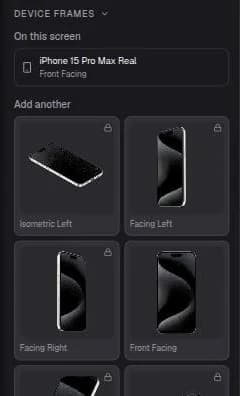
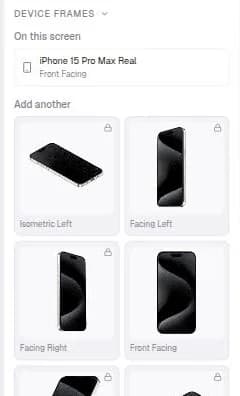
Real frames, at any angle
Drop a capture onto a frame and it is composited into the screen with that pose's own perspective, so angled shots read as photographed rather than pasted.
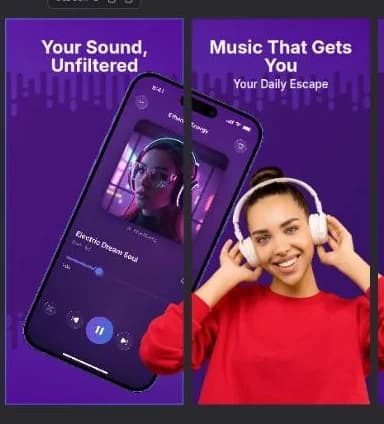
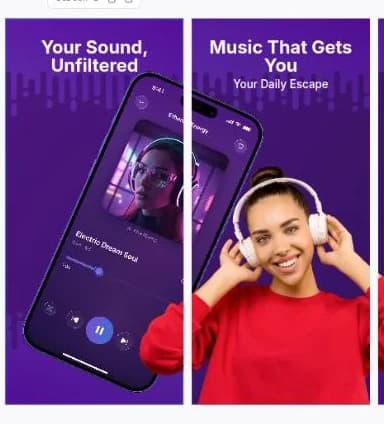
Backgrounds and headlines
Solid or gradient backgrounds, headlines in any Google Font, shapes and SVG elements — all arranged on a board that shows your whole listing at once.
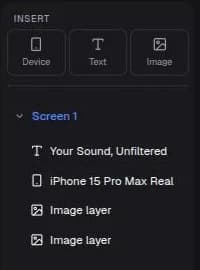
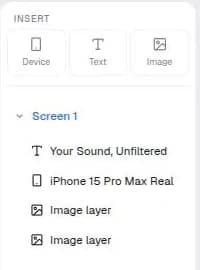
Everything stays editable
Nothing is flattened. Every device, headline, image and shape stays its own layer you can reorder, nudge, flip, recolour or restyle at any point.
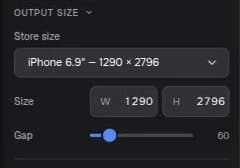
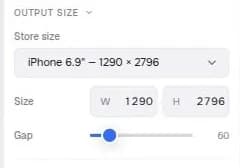
Every store size
Switch the canvas between store presets and every screen re-exports at native resolution — one PNG at a time, or the whole set as a zip.
From capture to store listing.
Three passes through the same tab, with no design file to hand off.
Bring in your captures
Import screenshots from the simulator or straight off your phone. They land on the canvas at full resolution.
Frame and dress them
Pick a device and a pose, then add a headline and a background. Every piece stays its own editable layer.
Export the set
Download one image per screen at native resolution, or the whole set as a zip, ready for App Store Connect or Play Console.
16 device frames, iPhone to Surface.
Realistic and clay finishes, each with several angles, so a set can stay flat and legible or lean into perspective.
- iPhone
- iPhone 8iPhone 11iPhone 12iPhone 13iPhone 14iPhone 15 Pro MaxiPhone 16 Pro Max
- iPad
- iPad AiriPad ProiPad Pro M4
- Android
- Google Pixel 4Google Pixel 8 ProGoogle Pixel 9 ProSamsung S10Samsung S20
- Surface
- Surface Pro
The resolutions the stores ask for.
Switch the canvas to a preset and every screen exports at that exact size — no resizing pass afterwards.
| Store | Device size | Resolution |
|---|---|---|
| App Store | iPhone 6.9" | 1290 × 2796 |
| App Store | iPhone 6.5" | 1242 × 2688 |
| App Store | iPhone 5.5" | 1242 × 2208 |
| App Store | iPad Pro 13" | 2048 × 2732 |
Questions people ask before starting.
What size do App Store screenshots need to be?
App Store Connect asks for 1290 × 2796 pixel screenshots for the 6.9-inch iPhone and 2048 × 2732 for the 13-inch iPad. ScreenStore ships both as canvas presets, along with 1242 × 2688 and 1242 × 2208 for older iPhone sizes, so every export already matches what the store expects.
What size do Google Play screenshots need to be?
Google Play accepts portrait phone screenshots in the same proportions as the iPhone presets, so a set built at 1290 × 2796 uploads cleanly to the Play Console. You can also set any custom canvas size in the editor if you need a specific aspect ratio.
Do I need Figma, Sketch, or Photoshop?
No. ScreenStore runs entirely in the browser, so there is nothing to install and no design file to hand off. If you can open a tab, you can build a screenshot set.
Which device frames are included?
Yes. The device library covers iPhone 8 through iPhone 16 Pro Max, iPad Air, iPad Pro and iPad Pro M4, Google Pixel 4, 8 Pro and 9 Pro, Samsung Galaxy S10 and S20, and Surface Pro — in both realistic and clay finishes, with multiple angles per device.
How do the device mockups work?
Drop a screenshot onto a device frame and it is composited into the screen with the frame's own perspective, so angled and isometric poses look photographed rather than pasted. Frame colour, drop shadow and scale stay editable afterwards.
Can I use my own fonts?
Every Google Font is available in the text inspector, including the real weights each family ships. Pick a family, set the weight, size, line height and alignment, and add a gradient fill or a drop shadow.
Can I build a whole set of screenshots at once?
Yes. A set holds as many screens as you need, and they sit side by side on one board so you can keep headlines and backgrounds consistent across the whole listing. Export them one at a time or download the full set as a zip.
Can I start from a template?
Start from a template and swap in your own screenshots, or open a blank canvas and build from scratch. Templates are grouped by category, and using one copies it into your own project so the original stays untouched.
What happens to the screenshots I upload?
Screenshots you upload are stored against your account and are private by default. Publishing a template is the only action that makes its images publicly readable.
Is ScreenStore free?
You can build and preview a complete set for free. Exporting at native store resolution requires unlocking exports on your account.
Ship your next screenshots today.
Open a blank canvas, paste in your captures, and export when it looks right.
Open the editor